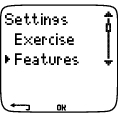
The running computer offers you the option of measuring speed/pace and distance data with a foot pod*. Change the settings of your foot pod* in the Footpod menu.
Switch the speed and distance function on or off
Select Settings > Features > Footpod > On/Off
Calibrate the foot pod
Select Settings > Features > Footpod > Calibrate
For further information, see Calibrate the Foot Pod.
Select Settings > Features > Rec.rate > 1 / 5 / 15 / 60 sec
The running computer can store your heart rate, speed/pace,* and altitude in 1, 5, 15 or 60 second intervals. A longer interval gives you more recording time, while a shorter interval allows you to record more heart and other data. This enables accurate data analysis using the software.
A shorter recording rate consumes the memory of the running computer more rapidly. The remaining recording time is displayed on the lower row when setting the rate. Default recording rate is 5 seconds.
When less than 30 minutes of maximum recording time is left, the recording rate changes automatically to longer recording time (1s > 5s > 15s > 60s). This will maximize the time to record exercise data. When the session ends, the current recording rate remains as default.
The following table shows the maximum recording times for each recording rate. Note that recording rate might change when there is less than 30 minutes of recording time left.
Speed/Pace | Recording Rate 1 s | Recording Rate 5s | Recording Rate 15s | Recording Rate 60s |
|---|---|---|---|---|
Off | 31h 30min | 158h** | 474h** | 1899 h** |
On | 7h 50min | 39h 30min | 94h 50min | 379h** |
** This is a sum of 2 or more exercises; maximum duration of a single exercise is 99 h 59 min 59 s. The maximum recording time can be shorter, if you record a large number of short exercises.
The durations in the table are estimates. For RR data, maximum recording time depends on heart rate and variation of heart rate. If you record laps in your exercise, and/or if you have created an exercise that includes phases with the software, the maximum recording time will decrease.
Recording doesn't automatically stop when the memory becomes full. Therefore, exercise time may be longer than recording time.
Select shoes for your exercise
Select Settings > Features > Shoes 1 / Shoes 2
To follow and compare the usage of different shoes, the running computer can store the running distance* for different pairs.
Rename your shoes
Select Settings > Features > Shoes 1 / Shoes 2 > Rename
Type the name with , and .
Using Other Shoes
Select Settings > Features > Shoes > Other
Running distances are only accumulated in the Total and Weekly distance files, and not assigned to a specific shoe.
When starting an exercise recording, you can easily change the shoe selection. In time mode, press and press and hold . The number in the lower right hand corner of the display indicates the shoe selection.
Set the automatic lap recording
Select Settings > Features > A.Lap > On > set the lap distance
The running computer will automatically record laps. Choose Off to deactivate.
Setting the HeartTouch Function
Select Settings > Features > HeartTouch
HeartTouch enables you to view information during training without pressing buttons. By bringing the running computer near the transmitter, your target heart rate zone will appear in the display. Options for the HeartTouch function include:
Show limits
Take lap
Change view
Light
Off
With HeartTouch, you can easily view exercise details that would normally require a button press, distracting you from your training.
Define the way to display your heart rate
Select Settings > Features > HR view > HR / HR%
Define the sport zones in the running computer
Select Settings > Features > Sport zones > Sport zone low limit
Set the lower limit of sport zone 1 by pressing or . Then press . Set the lower limits of each sport zone in the same way. When setting the lower limit, the upper limit of the previous zone is set automatically.
Press and hold to switch between sport zone views: HR% (percentage of maximum heart rate) or BPM (beats per minute).
You can change settings easily by using the software. For further information, see software help.
*Optional S1 foot pod required.
Set accurate user information in the running computer to receive the correct feedback on your performance.
To set user information in the running computer
Select Settings > User

Weight: To change units, press and hold
Height: To change units, press and hold
Birthday: dd=day, mm=month, yy=year
Sex: Male/Female
Activity: Top/High/Moderate/Low
Heart Rate: HRmax, HRsit
VO2max: Maximal oxygen intake
Activity Level
Activity level is an assessment of your level of long-term physical activity. Select the alternative that best describes the overall amount and intensity of your physical activity during the past three months.
Top: You participate in heavy physical exercise at least 5 times a week, or you exercise to improve performance for competitive purposes.
High: You participate at least 3 times a week in heavy physical exercise, e.g. you run 10-40 km/6-25 miles per week or spend 2-4 hours per week in comparable physical activity.
Moderate: You participate regularly in recreational sports, e.g. you run 5-10 km or 3-6 miles per week or spend 1/2-2 hours per week in comparable physical activity, or your work requires modest physical activity.
Low: You do not participate regularly in programmed recreational sport or heavy physical activity, e.g. you walk only for pleasure or exercise hard enough to cause heavy breathing or perspiration only occasionally.
In the running computer, these values are used to calculate your energy expenditure.
Heart Rate: HRmax, HRsit
HRmax (Maximum heart rate): Your age-predicted HRmax value (220 - age) is used as a default. Set your HRmax manually if your maximum heart rate has been determined in a lab, or if you have tested your maximum heart rate in the field yourself.
HRsit (Heart rate value in a sitting position): Your age-predicted HRsit value is used as a default. Set your HRsit value if you have determined it according to the instructions. For instructions, see Heart Rate Value in a Sitting Position .
Maximal Oxygen Intake: VO2max
VO2max is your body’s maximum capacity for oxygen consumption during maximum exertion. The most accurate way of determining VO2max is to perform a maximal stress test in a laboratory. If you know your exact clinically-tested VO2max, set the value in the running computer. Otherwise, measure a comparable value, OwnIndex, by taking the Polar Fitness Test. For further information, see Polar Fitness Test.
If changes are made to the user settings, User settings updated is displayed.
You can change settings easily by using the software. For further information, see software help.
To set the sound level
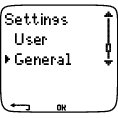
Select Settings > General > Sound > Volume > On / Off
Volume settings control button sounds and activity sounds during exercise. This does not affect the watch or target zone alarms (TZ Alarm).
To set the target zone alarm on/off
Select Settings > General > Sound > TZ Alarm > On / Off
The target zone alarm will go off, and the limits will flash when you are outside the target zone. If the volume is turned off, but TZ Alarm is still on, the TZ Alarm will still function.
Define keylock settings
Select Settings > General > Keylock > Manual / Automatic
Keylock prevents accidental button presses.
Manual: Activate the manual keylock. To turn keylock on/off, press and hold for at least one second.
Automatic: Keylock is activated in time mode when buttons have not been pressed for one minute.
Set preferred units in the running computer
Select Settings > General > Units > kg/cm/km or lb/ft/mi
Activate the sleep function
Select Settings > General > Sleep > Activate sleep mode? > Yes
Activating the sleep mode will help save the battery when the running computer is out of use for a long period of time. The watch alarm will still function in sleep mode.
Awaken the running computer
Press any button > Turn display on? > Yes / No
Yes: the running computer is activated.
No: the running computer returns to sleep mode.
You can change settings easily by using the software. For further information, see software help.

Set a reminder to remind you of different tasks or exercises
Select Settings > Watch > Reminders > Add new
Date: Enter the date of the task, dd=day, mm=month, yy=year.
Reminder time: Enter the time for the task.
Alarm: Set alarm to sound on time, or 10 min / 30 min / 1 hour before the task.
Sound: Select alarm sound Silent / Beep / Normal.
Repeat: Select reminder to repeat Once / Hourly / Daily / Weekly / Monthly / Yearly.
Exercise: Select an exercise to link to the reminder. When the reminder goes off, the running computer will present this exercise as default. Select NONE if you do not want to link the reminder to an exercise session.
Rename: To rename the reminder, select letters with or , and accept with .
You can program seven reminders in the running computer.
See active reminders and modify them
Select Settings > Watch > Reminders
Select a reminder to view, edit, rename or delete.
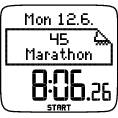
Set an event countdown in the running computer
Select Settings > Watch > Event
Event day: dd=day, mm=month.
Rename: To rename the event, select letters with or , and accept with .
Modify the event countdown
Select Settings > Watch > Event
You can view the event countdown, set a new date, rename or delete it.
In time mode, hide or view the event countdown again by pressing and holding .
Set an alarm on your running computer
Select Settings > Watch > Alarm > Off / Once / Mon-Fri / Daily
You can set the alarm to go off once everyday between Monday and Friday, or daily. The alarm sounds in all modes except in exercise mode, and will do so for a minute unless you press . The watch alarm also functions in sleep mode. The alarm will sound even if you have turned the sound off in the General settings.
To snooze the alarm an extra 10 minutes, press or buttons or : Snooze is displayed and the snooze time starts counting. To abort the snooze stage and alarm mode, press .
If a battery symbol appears in the display, the alarm cannot be activated.
Set time 1 in the running computer
Select Settings > Watch > Time 1 > 24h / 12h
Set time 2 in the running computer
Select Settings > Watch > Time 2
Set the time difference between time 1 and time 2 in hours.
Switch between time zones
Select Settings > Watch > Time zone > Time 1 / Time 2
Select a time zone
In time mode, change the time zone by pressing and holding . Number 2 on the lower right corner of the display indicates that Time 2 is in use.
Set the date in the running computer
Select Settings > Watch > Date
dd=day, mm=month, yy=year
You can change settings easily by using the software. For further information, see software help.
In time mode, select > Settings > Display > Edit
Personalize your running computer display to show the information you want to see, either by using the running computer or the software. A programmed exercise downloaded from the software has its own display that cannot be modified.
For further information on display symbols, see Information on the Display.
Select the display you want to change by pressing or , and press . Set the information for the blinking upper row with or , and press . The information on the display depends on the features that are activated. For further information, see Feature Settings .
Repeat the same to change the middle and lower rows. Each display is named after the information shown on the lower row. To return the default settings of the display, press and hold when the rows are blinking.
Activate Titles to view help texts while changing displays during exercise: In time mode, select > Settings > Display > Titles
↑ Back to topSome settings can be changed with a shortcut button in time mode.
Press and hold LIGHT > Quick menu
Keylock
Reminders
Alarm
Time zone
Sleep
For further information, see ???.
↑ Back to top