Pause exercise recording by pressing . To stop recording completely, press again.
Care for your transmitter after exercise. Detach the connector from the strap after use. Keep the transmitter dry and clean. For complete care and maintenance instructions, see Care and Maintenance.
↑ Back to top
To view basic data on your performance, see File on your running computer. For deeper analysis, transfer the data to Polar ProTrainer 5. The software offers you different options to analyze data with.
The running computer and software are connected via IrDA. First, open the software. Then, select Connect from your running computer and place the wrist unit in front of the infrared window on the computer. For complete instructions on transferring data, see software help.
Select File for the following options:
Exercise log lists a maximum of 99 exercise files.
Weekly includes summaries of the past 16 weeks.
Totals shows cumulative exercise information.
In the Delete menu, you can delete exercise files.
Select File > Exercise log
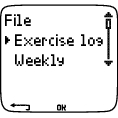
You can view detailed information on your exercise sessions in the Exercise log. The following info will appear:
Exercise name.
A graphic bar representing an exercise session. The height of the bar indicates exercise duration. This shows the variation of your sessions in graphical format.
Date when you performed the exercise.
The information that can be viewed (a-d below) depends on the exercise type and settings (e.g. if your exercise does not include phases, phase information will not be seen).
Scroll the exercise bars with or and press to view:
| | a. Basic Select File > Exercise log > Basic |
| | b. Sport zones Select File > Exercise log > Sport zones |
| | c. Phases Select File > Exercise log > Phases |
| | d. Laps Select File > Exercise log > Laps |
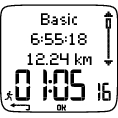
a. Basic
Select File > Exercise log > Basic
| | Name of exercise Starting time Distance* Duration |
Press and scroll with or to view:
| | Heart rate in beats per minute (bpm), alternating with a percentage of your maximum heart rate (%). Maximum heart rate Minimum heart rate Average heart rate |
| | Target zones (HR / speed / pace) , alternating zone 1, zone 2, and zone 3. Upper limit Lower limit |
| | Time in, above, and below zone 1/2/3 (phase name displayed in programmed exercise). Time above zone Time below zone Time in zone |
| | Speed/pace Maximum speed/pace Average speed/pace Distance* Press and hold to switch speed/pace. |
| | Calories expended during exercise. Energy expenditure indicates overall exertion during exercise. |
| | Running Index To get a Running Index value, there are requirements your exercise has to fulfil. For further information, see Polar Running Index. |
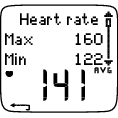
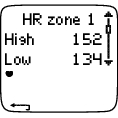
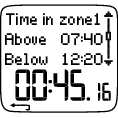
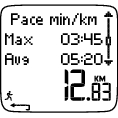
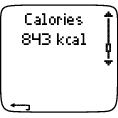
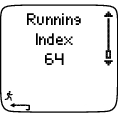
Press to return to the basic information view.
Additional Basic Information
Select File > Exercise log > Basic
To add your own exercise information or delete the exercise from File, press and hold in basic information view.
Rank: Give a grade to your exercise.
Feeling: Evaluate your subjective feeling during the exercise.
Temperat.: Set the temperature with UP or DOWN.
Distance: If you accidentally set the wrong shoes for your exercise, and distance data has therefore been assigned to the wrong shoes, you can enter the correct shoes and recorded distance here. Select the shoes you were using during exercise, then enter the distance. The distance is updated for the selected shoes, and in total and weekly distance logs. You can also enter the distance here, if you were exercising without a foot pod*. Select Other to record distance that you do not want to assign to shoes 1 or 2.
b. Sport Zones
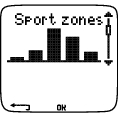
Select File > Exercise log > Sport zones
In the basic information view, press to see Sport zones information.
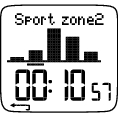
Press and scroll or to view time spent in each sport zone. Here, the variation of your sessions is presented in graphical format.
Press to return to the Sport zones information view.
c. Phases
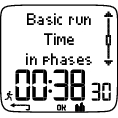
Select File > Exercise log > Phases
The Phases menu is displayed only if the exercise is created with the software, and includes phases.
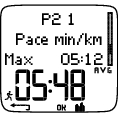
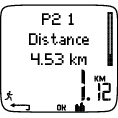
In the Sport zones information view, press to view Phases information. You can view each phase separately.
Scroll data of an individual phase by pressing . Compare phases by pressing or .
| | Time Phase name Split time Duration of current phase |
| | Heart rate in beats per minute (bpm), alternating with a percentage of maximum heart rate (%). Maximum heart rate Average heart rate |
| | Increased HR / Recovery HR / HR differ. The difference between heart rate at the beginning and end of the phase. Current heart rate in beats per minute (bpm), alternating with a percentage of your maximum heart rate (%). Increased HR: If heart rate was lower at the beginning of the phase than it was at the end, the running computer will show the difference in heart rate (heart rate at the end minus heart rate at the beginning). During the working phase, the running computer will show the increased heart rate value. Recovery HR: If the heart rate was higher at the beginning of the phase than it was at the end, the running computer will show the difference in heart rate (heart rate at the beginning minus heart rate at the end). During the recovery phase, the running computer will show the recovery heart rate value. HR differ: If the heart rate value was the same at the beginning and end of the phase, the running computer will show an HR difference value of 0. |
| | Speed/pace* Maximum speed/pace Average speed/pace |
| | Distance* Split distance Distance of current phase |
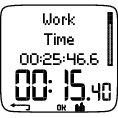
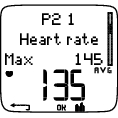
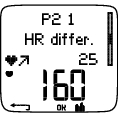
Press to return to the Phases information view.
d. Laps
Select File > Exercise log > Laps
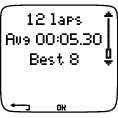
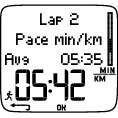
In the Phases information view, see Laps information by pressing . Laps information is shown only if there is more than one lap in the memory.
| | Number of recorded laps Average lap time Best (fastest) lap number alternating with its time |
The last lap is never shown as the best lap, even if it is the fastest lap. If you are in a running event and wish to include your last lap, press OK on the finishing line instead of STOP. This way, the last actual lap is included in the calculation for best lap. You can then stop recording after the finishing line.
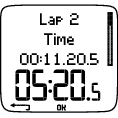
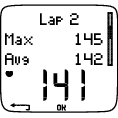
Scroll the different information of an individual lap by pressing .
Compare information on different laps by pressing or .
For easy view of lap information, transfer the files to the software.
| | Time Split time Lap time |
| | Heart rate in beats per minute (bpm) alternating with percentage of maximum heart rate (%). Maximum heart rate Average heart rate End heart rate of lap |
| | Speed/Pace* Average speed/pace End speed/pace of lap Press and hold to switch speed/pace. |
| | Distance* Split distance Lap distance |
Press to return to Laps information view.
Select File > Weekly
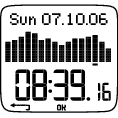
In Weekly summary, you can view the accumulated data on 16 weeks of exercise. The bar on the far right named This week displays exercise summary for the current week. The previous bars are dated the Sunday of the week in question. Scroll the displayed weeks with or , and view total exercise duration on the lower row.
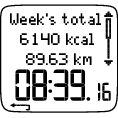
Select the week with to see the week’s total calories, distance,* and exercise time. Press to see week’s sport zones.
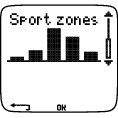
To see time spent in each sport zone, press and scroll the sport zones or .
Select File > Totals
Totals includes cumulative information recorded during training sessions since the last reset. Use the Total values file as a seasonal or monthly counter of training data. The values are updated automatically when exercise recording is stopped.
Use or to scroll through the following information:
Shoes 1 distance*
Shoes 2 distance*
Total distance*
Total duration
Total calories
Total exercise count
Reset totals
To reset total values
Select File > Totals > Reset totals
Select the value you wish to reset from the menu and confirm with . To confirm resetting select Yes. The deleted information cannot be retrieved. Select No to return to the Reset menu.
Select File > Delete > Totals
In Delete, you can delete previous exercises one by one, all exercises at the same time, or total values.
Scroll through the following information with or :
Exercise: Select a single exercise to delete.
All exerc.: Delete all exercise from the memory with one button press.
Totals: Delete the total values one by one or all totals at the same time.
Confirm by selecting Yes.
*Optional S1 foot pod required.