The following training feedback is displayed when you stop recording a training session.
| Effect | Training effect feedback. See the following page for more information. |
| Intensity | Time spent in zones 1, 2, and 3. |
Zone limits | OwnZone limits (displayed if OwnZone was in use). |
Calories/Calories fat | Expended calories during the session, and fat percentage. |
Average/Maximum | Average and maximum heart rate during session. |
Duration | Duration of your training session. |
Average/Maximum | Average and maximum speed during session (displayed only if optional GPS sensor/foot pod was in use). |
Distance/Duration | Distance and duration of session (displayed only if optional GPS sensor/foot pod was in use). |
This week | Your targets for the current training week and the results you have achieved so far (displayed if the training program is active). |
One of the following training effect feedbacks is displayed:
| Fat burn improving | Training at low intensity improves your body's capability to burn fat. |
| Fitness improving | Training at least at moderate intensity improves your cardiovascular fitness. |
Maximal perform. improving | Training at hard intensity improves your maximal performance. |
Strength training | Strength training increases body strength and tone, and improves health. |
If you train enough at more than one intensity level, your session will also have several effects.
| Fat burn and fitness improving | Training improves primarily your body's capability to burn fat, but also cardiovascular fitness. |
| Fitness and fat burn improving | Training improves primarily your cardiovascular fitness, but also your body's capability to burn fat. |
Max. perf. and fitness improving | Training improves primarily your maximal performance, but also fitness. |
The FT80 automatically reviews your progress. An envelope reminds you to check the previous week’s training results. Press to open the envelope and to view a summary of your training week.
| Week targets achieved | You have achieved your weekly targets. |
| Results | Excellent! / Well done! / Nice! / Fitness maintained / Good training week / Incomplete training week / Good recovery week / Excellent recovery week If your result is Excellent, the FT80 rewards you with a trophy, which appears in Time view. |
Achieved/Week target | Achieved training duration vs. week target duration. |
Achieved/Week target | Expended calories vs. week target. |
Sessions | Number of training sessions this week (displayed also when the training program is not active). |
Achieved time per zone | Time spent in zones 3, 2, and 1. |
This week | Training guidance displayed only when accessed from the envelope. See the following page for more information. |
| Train a lot more | You need to train a lot more to get effects. |
| Train more | You do not train enough for improvement. |
Train more in zone x | You need to train more at hard/moderate/light intensity this week. |
Train like last week | You did a good job last week. Keep it up! |
Train less in zone x | You should decrease training at hard/moderate/light intensity this week. |
Train a lot less in zone 3 | You should decrease training at hard intensity this week. |
Take recovery week | You have not recovered from last week, it was too hard. |
Recovery week still needed | You have not recovered yet; last week was still too hard. |
If you have activated your training program between Wed-Sun, the first complete feedback will only be provided after the first complete training week.
Fitness Test
The FT80 reminds you to take the fitness test by posting an envelope. The result will be incorporated in the next program update.
An envelope is displayed. Press to open the envelope. Time to test fitness is displayed.
Test fitness? Select Yes or No.
If you select Yes to perform a new fitness test, see Test Your Fitness Level.
Polar STAR Training Program Update
The FT80 continuously analyzes your progress and adjusts by increasing or decreasing the weekly training targets. An envelope appears on the display to notify you when the program has been updated. Press to open the envelope.
Program has been updated is displayed. The FT80 has analyzed your progress and adapted your program training targets accordingly.
Time for a recovery week is displayed. To optimize your training, the balance between training and recovery have to be ideal. A recovery week allows your body to recover and adapt to the stimulus that training has provided.
After your program is updated, View week targets? is displayed. Select Yes to view the updated training targets.
↑ Back to topSelect Menu > Data > Training files to view information on your 100 most recent training sessions. Select the training you want to view with .
To delete a training file, select Menu > Data > Delete files > Training file. Select the training file you want to delete. Delete file?is displayed. Select Yes. Remove from totals? is displayed. To remove the file from totals, as well, select Yes.
To delete all training files, select Menu > Data > Delete files > All files. Delete all files? is displayed. Select Yes.
Select Menu > Data > Week summaries to view information on your 16 most recent training weeks. Select the week you want to view with .
To reset week summaries, select Menu > Data > Reset week summaries.
View your total cumulative number of training sessions, duration, burned calories and, if GPS sensor/foot pod is in use, distance in several trainings, starting from the previous reset in Menu > Data > Totals since xx.xx.xxxx.
To reset totals, select Menu > Data > Reset totals.
Follow your long-term test results in OwnIndex results containing 47 of your latest OwnIndex values and the dates of the tests. On average, it takes six weeks of regular training to improve your aerobic fitness noticeably. To improve your aerobic fitness most efficiently, you need to train large muscle groups.
Select Menu > Applications > Fitness test > OwnIndex results.
Your OwnIndex result graph, result, and date of the latest test are displayed. Press to view the previous OwnIndex results.
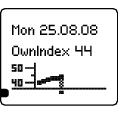
OwnIndex graph
Date of the test
Result of the test (OwnIndex)
You OwnIndex result graph
To delete an OwnIndex value, select the value you want to delete with . When the value is displayed, press and hold the until Delete this value? appears. Select Yes.
↑ Back to topThe Polar OwnRelax® test measures your heart rate and heart rate variability during a five-minute resting period. The result is your resting heart rate (bpm) and OwnRelax value (in milliseconds), corresponding to your body's state of relaxation.
You can take the test anywhere, as long as the test environment is peaceful. There should be no disturbing noises. You should not read or talk. You should be lying down, relaxed and calm. Always repeat the test in similar conditions. Have a relaxation session:
in the morning for a general relaxation check.
before training to check readiness for a planned workout.
after training for recovery detection.
whenever you feel a need to check your relaxation.
Wear the heart rate sensor.
Select Menu > Applications > Relaxation test.
Select Start test. The wrist unit starts the session by searching for your heart rate.
When the heart rate is found, Testing... Lie down and relax is displayed.
Once done, a beep will sound and Test completed is displayed.
Feedback on your relaxation rate, your resting heart rate (bpm) and OwnRelax value (ms) are displayed.
|
Interpret your OwnRelax values by comparing them over time, or to average values for your gender and age groups.
|
 |
To follow your long-term OwnRelax results, select Menu > Applications > Relaxation test > OwnRelax results. Your OwnRelax result graph, result, date of the last test, and feedback are displayed. Press to view the previous results.
To delete an OwnRelax value, select the value with . Press and hold until Delete this value? appears. Select Yes.
Use ready-made strenght training exercises or add your own strenght training exercises in polarpersonaltrainer.com and transfer those to your FT80 to guide your strength training session. After training session(s), follow-up easily your fitness level development by transferring training data from FT80 to polarpersonaltrainer.com. The first time follow carefully instructions:
1. Transfer strength training workouts to your FT80:
Register in polarpersonaltrainer.com.
Follow the instructions on your computer screen to download and install the WebSync data transfer software onto your computer.
If you have already registered, but not downloaded WebSync, download it in polarpersonaltrainer.com -> downloads and follow the installation wizard.
Plug in the FlowLink cable to the USB port on your computer.
Place your FT80 on the FlowLink facing down.
Follow the data transfer process from the WebSync software on your computer screen. See polarpersonaltrainer.com "Help" for further instructions on data transfer.
2. Transfer training data from FT80 to your diary in polarpersonaltrainer.com
Open the Web Sync data transfer software onto your computer.
Plug in the FlowLink cable onto the USB port onto your computer.
Place your FT80 on the FlowLink facing down.
Follow the data transfer from your FT80 onto polarpersonaltrainer.com on your computer screen. See polarpersonaltrainer.com "Help" for further instructions.