


















Using Polar Verity Sense with USB and FlowSync
Applies to: Verity Sense
If your Verity Sense is running firmware version 3.0.15 or later, you can also use it with a USB connection and Polar FlowSync. The USB setting is turned off by default for data security, but you can turn it on in the Polar Flow app. When enabled, you can use FlowSync to sync data and perform a factory reset.
Once the USB setting is on, your Verity Sense can be accessed through a USB connection, and anyone with physical access to the device may be able to view or change the data stored on it. Enable the setting only when needed and connect your Verity Sense only to trusted computers.
This document provides step-by-step instructions for all supported actions when using Verity Sense with a computer and FlowSync.
Sync data
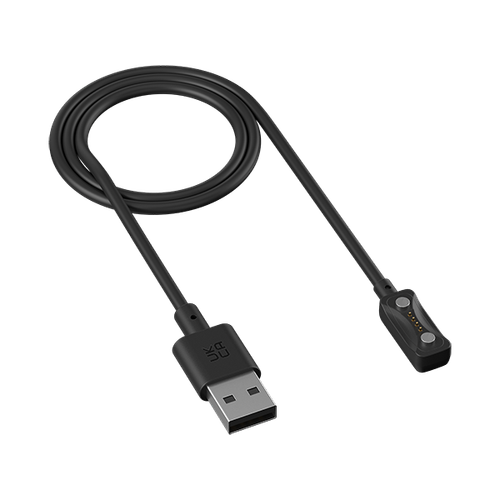
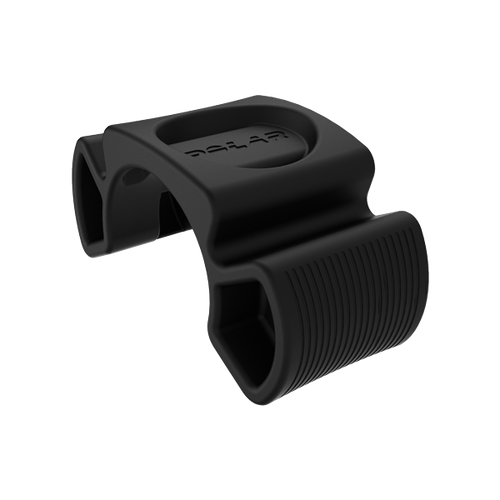
- Place the sensor into the USB adapter with the lens facing up so that the contacts on the sensor and USB adapter meet.
- Plug the USB adapter into your computer’s USB port. Make sure the USB adapter is placed into the USB port correctly. Ensure the FlowSync software is running.
- The FlowSync window opens on your computer, and the syncing begins automatically.
- Completed is displayed when syncing is finished.
Every time you plug your Verity Sense into your computer, FlowSync will transfer your data to the Polar Flow web service and sync any settings you may have changed.
If syncing does not start automatically, launch FlowSync from the desktop icon (Windows) or from the applications folder (macOS).
If you change settings in the Flow web service while your sensor is connected to your computer, click the SYNC button on FlowSync to transfer the updated settings to your sensor.
Reset sensor
Place the sensor into the USB adapter with the lens facing up so that the contacts on the sensor and USB adapter meet.
Plug the USB adapter into your computer’s USB port.
Open settings in FlowSync.
Click FACTORY RESET.
After clicking, wait 5 minutes before disconnecting Verity Sense from your computer.
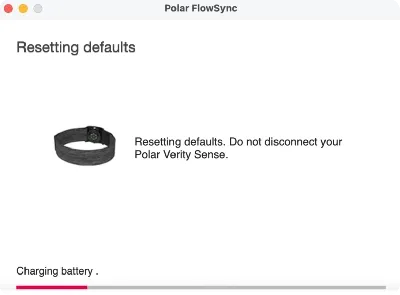
Since the factory reset restores Verity Sense to its default settings, the USB setting is turned off. This makes FlowSync look like stuck on the Resetting defaults, Charging battery screen. After 5 minutes, you can safely disconnect the sensor even if FlowSync still appears stuck.
If you use the Flow app to sync, check the list of paired Bluetooth devices on your phone, and remove your sensor from the list if it's there.
Set up your sensor again using the Flow app. Make sure you use the same Polar account that you used before resetting.
Note that the USB setting will be off after the factory reset. You can turn it back on in the Flow app.