













Manual training recording
Applies to: Polar Loop
Manual training recording lets you track your sessions using your device as a heart rate sensor in the Flow app. If your phone is with you during training, you can use its GPS to track outdoor activities, and use voice guidance and quick targets to guide your session. If you prefer to track only your heart rate, you can leave your phone behind. Your training data syncs automatically with the Flow app after you stop the session in the app.
Before you can record training sessions manually, the device must be paired as a heart rate sensor on the Training settings page in the Flow app. For instructions, see How to Get Started.
Wear your Polar Loop snugly on your wrist.
For accurate measurement and tracking, it is important that the device is positioned correctly on your wrist. See How do I wear my Polar Loop? for instructions. Also, make sure that you are wearing the device on the wrist you selected in the Flow app device settings.
In the Flow app, go to Start > Training.

If automatic training detection is turned on and the device has already started recording due to elevated heart rate and activity levels, you must stop the ongoing recording before starting a manual training session. The ongoing recording is shown in the Start view. To stop it, press and hold the Hold to stop button. If you want to delete the automatically recorded session, press and hold the session in the Calendar view and select Delete.
Before you can record training sessions manually, the device must be paired as a heart rate sensor on the Training settings page in the Flow app. Tap the
 icon to open the Training settings page. Find your device on the page and tap Pair.
From the Training settings page, you can set quick targets and turn on Voice Guidance.
Tap Done to return to the Training page.
Once you have paired your device as a heart rate sensor with the Flow app, you’re ready to choose a sport profile and start training.
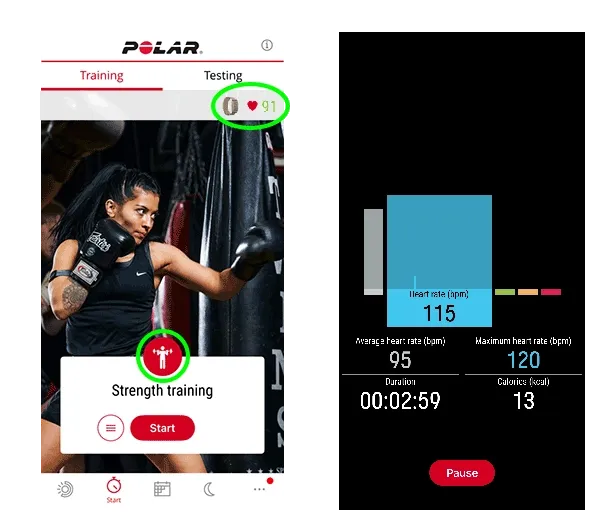
- On the Training page, tap the sport icon and select a sport profile from the list.
- When your current heart rate appears, tap Start to begin the session.
If you chose one of the outdoor sport profiles, you will be asked whether you want to use Phone GPS for the session. Choose Train with GPS to track your training route on the map, or Train without GPS to track only your heart rate. Tap Start to confirm your choice. If you prefer, you can disable this question for future sessions by switching off the Keep asking slider. You can also choose whether to use your phone’s GPS in the Training settings.
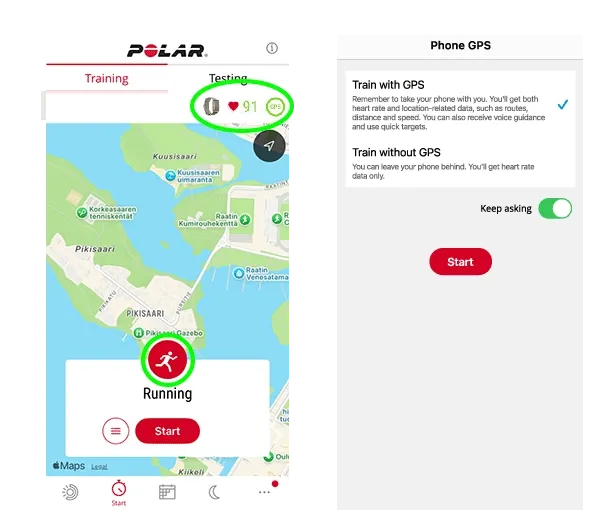
When recording training sessions with GPS, remember to take your phone with you to record location-related data, such as routes, distance, and speed. To accurately track your route, ensure that location permission is set to “Always Allow” on iOS or “Allow all the time” on Android, and that Precise location is enabled for the Flow app in your phone’s settings.
You can change the map view by tapping the  icon on the top of the map. You can also scroll and zoom the map as you want by swiping and pinching it. Bring back focus to your location by tapping the
  icon. Swipe the bottom of the page to change between heart rate and pace views.

To end a training session:
- Tap Pause.
- Hold the Stop button to save the session and view the training summary.