Route Guidance
The route guidance feature guides you along routes that you have recorded in previous sessions or routes that you've imported into Flow from a third-party service like komoot or Strava for example. You can also import route files directly into Flow in GPX or TCX file format.
You can choose to go to the route start point, route end point or nearest point on the route (mid-route). First your watch will guide you to your chosen start point on the route. Once on the route, your watch will guide you all the way through and keep you on track. Just follow the guidance on the display. At the bottom of the display you’ll see how much distance you still have left.
Route and elevation profiles
After choosing a route you'll see an overview of the route, and the elevation profile of it. This helps you identify which route is which, and what to expect from your session.
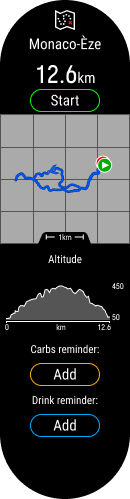
To zoom in or out your route, press OK, and then use the UP (+) and DOWN (–) buttons. Press BACK to exit zoom mode.
Total ascent and descent for planned routes
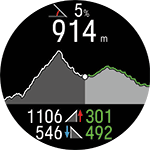
When starting a planned route you'll see the total ascent and descent on your route. As you go along the route the ascent/descent values will update and you'll always see the total ascent and descent still left on the route. You'll also see your current ascent/descent grade. At all times you'll know exactly where you are and how much you have left to go.
When doing an unplanned route you'll see the ascent and descent for the previous kilometer as well as your current ascent/descent grade.
You can use komoot to plan detailed routes on maps and transfer the routes to your watch via Flow.
Adding a route to your watch
To add a route to your watch you must save it as a favorite in the Flow web service or app, and sync it to your watch using the Flow app. For more information see Manage favorites and training targets in Polar Flow.
Start a training session with route guidance
- To enter the pre-training mode, press and hold OK in time view or press BACK to enter the main menu and choose Start training.
- Choose the sport profile you want to use.
- Open Routes, and then choose the route you want to follow.
- Add a carbs reminder or drink reminder if you wish, and then choose Start.
- Choose where you want to start the route: Start point, Mid-route, End point to reverse direction or Mid-route to reverse direction.
- Stay in the pre-training mode until the watch has found your heart rate and the GPS satellite signals, and start your session by pressing OK. You may be asked to the calibrate the compass before starting your session. If so, follow the instructions on the display to calibrate it.
- Your watch will guide you to the route. Route start found is displayed when you reach it, and then you're ready to go. Route-end point reached is shown when you're finished.
Press OK in the route guidance view to access zoom mode. To zoom in or out, use the UP (+) and DOWN (–) buttons, or pinch the display with your fingers. Press BACK to exit zoom mode.
To open the navigation options from the route guidance view, press the OK button twice. The following options are available:
- Your location: View the coordinates of your current location.
- End route guidance: Stops the current route guidance.
- Reverse route: Reverses the direction of the selected route.
- Routes: Opens the route list, from which you can switch to another route during your session if needed.
- Start turn-by-turn guidance: Activates turn-by-turn guidance for the current route. The watch provides instructions through sound and vibration alerts and shows which way to turn. Turn-by-turn guidance is enabled by default for Komoot routes. When turn-by-turn guidance is active, the option Stop turn-by-turn guidance appears in the menu.
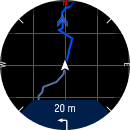
- Back to start: Turn on the Back to Start (Via beeline) or Track back (Via same route) feature. For more information, see Track back and Back to start.
- Route orientation: Choose North up to display the route with north always at the top of the screen. Choose Track up to display your direction of travel at the top of the screen.
- Compass calibration: Follow the instructions on the display to manually calibrate the compass.
Perform the calibration while wearing the watch on your wrist.