





















Renewed training session analysis
Applies to: Flow web service
Here are some tips and information to help you make the most of your training sessions using the renewed training session analysis view in the Flow web service. Check below for examples you might find in your sessions.
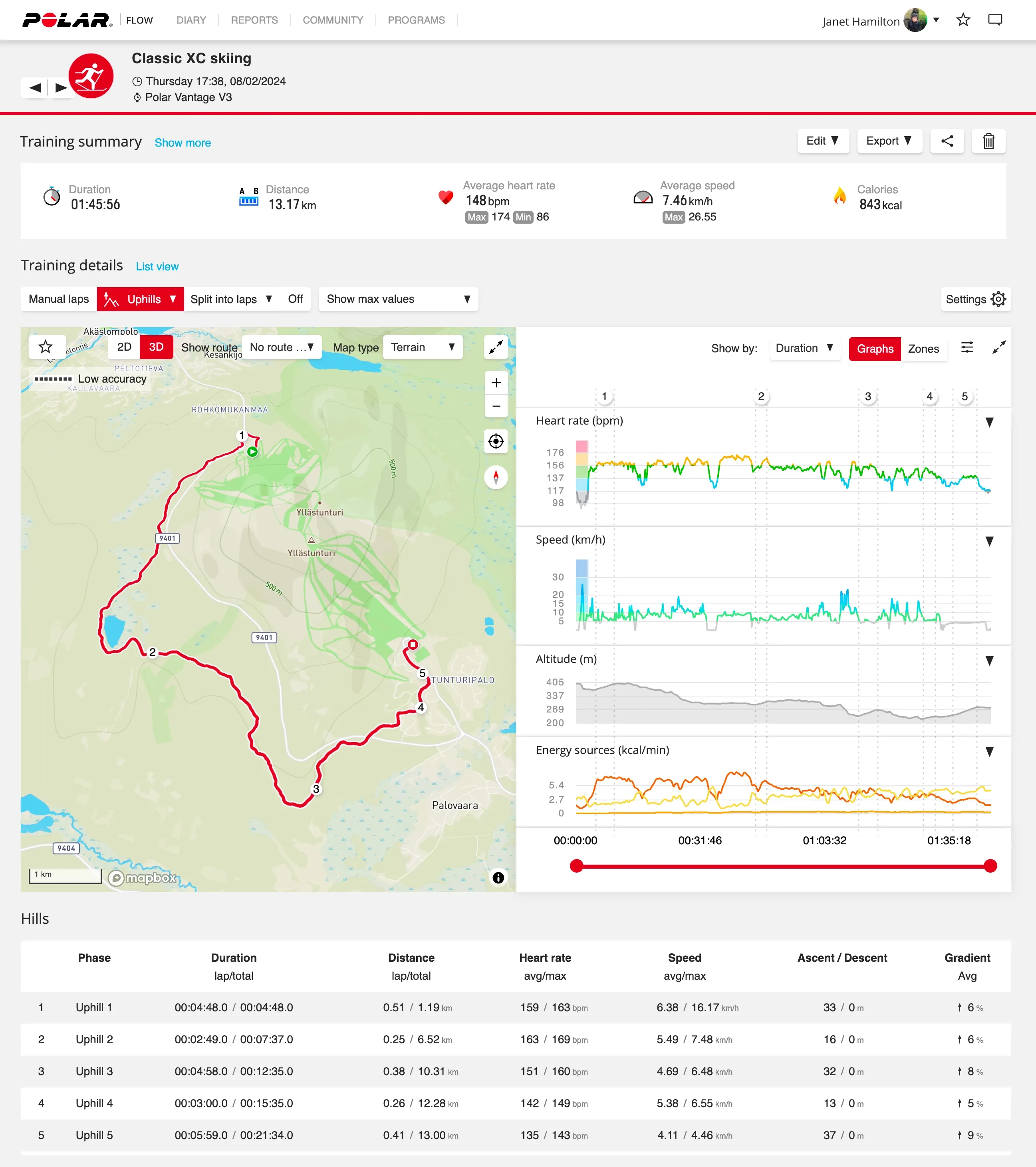
Training summary
- You can edit the session from the Edit button drop-down menu and access your Sport profiles.
- View your Cardio load report from View report link. A link to Running Index is also available with a suitable sport profile.
- Estimate session load (RPE) for each session, just like in the mobile app.
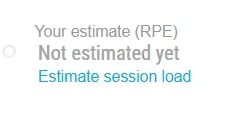
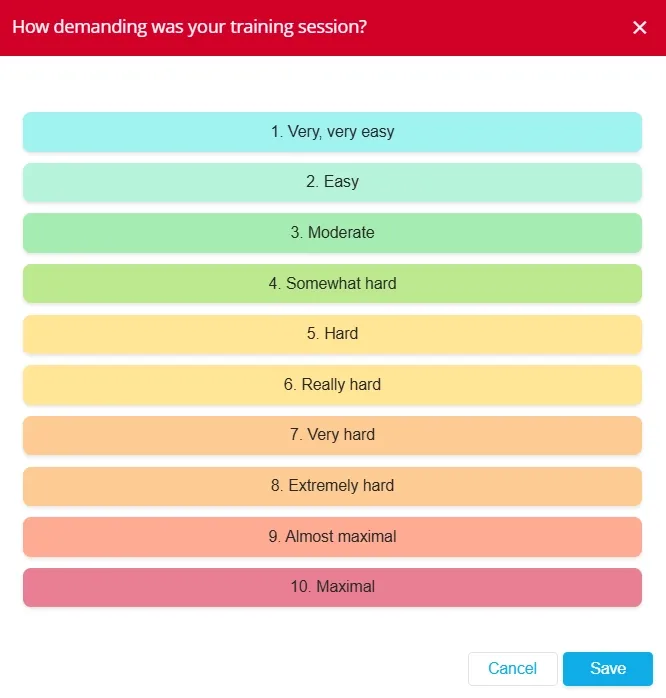
- Hide parts of the training summary when needed by clicking Show less.
Training details
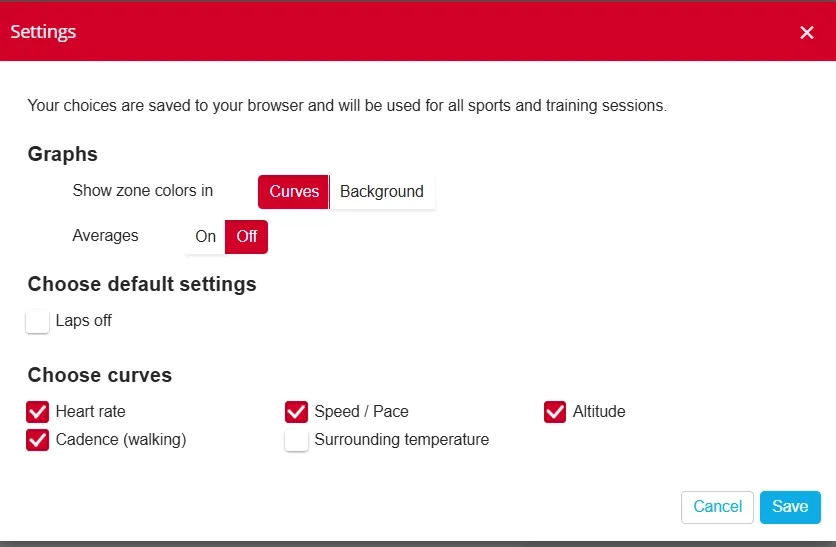
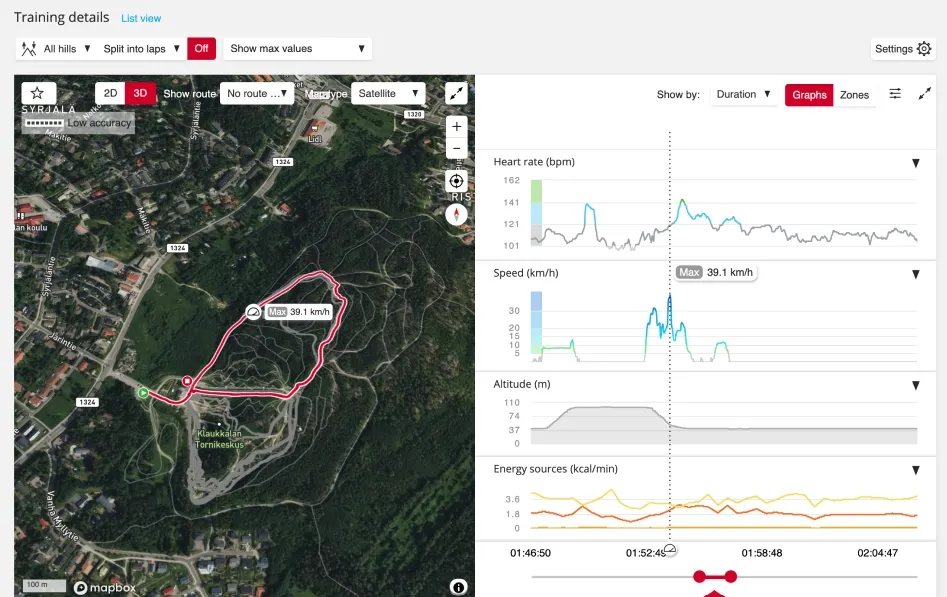
- Adjust how training details are displayed from Settings – for example, zone colors and which curves to show. Experiment with different options and choose what works best for you.
- Inspect parts of your training session by dragging the ends of the red timeline. You'll see Highlights of the selected section in more detail than before.
- New curves are available for Energy sources and Body temperature (with compatible devices).
- Maps can now be viewed in 3D.
- Expand the curves and the map to Fullscreen and view them also side by side.
- Swimming and multisport sessions now include detailed statistics.
- Coaching notes are now available here (previously only on the training history page).
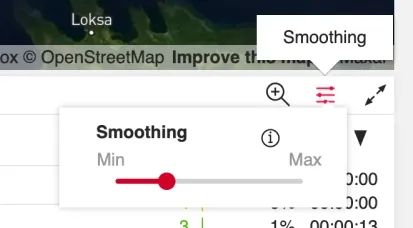
- Adjusting the Smoothing when viewing the curves is generally only recommended for power and speed curves in very long training sessions.