









How Can I Get Maps on My V650?
Applies to: V650
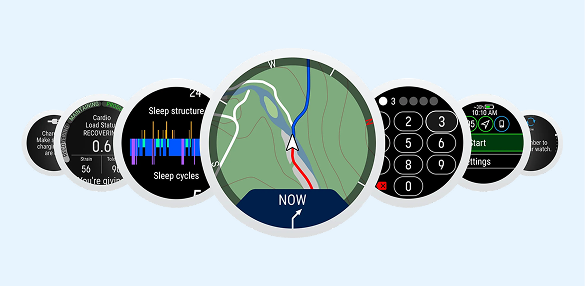
To get maps on your V650 you’ll first need to update your firmware to version 1.2 or later. After updating the firmware to version 1.2, you can find the map settings in Settings > General settings > Maps:

OFFLINE MAP AREA
- Define the offline map area (450 km x 450 km). You can browse the map by swiping, and zoom in with a double tap and zoom out with a two-finger tap.
- Once you have defined the area, tap UPDATE. Delete old maps? is displayed. You can have one map area at a time on your V650 so this means the previous map will be overwritten by the new map when selecting a new offline map area. Choose CONTINUE to confirm the area selection. V650 returns to MAP SETTINGS.
- Synchronize your V650 with Flow web service.
The offline map will be downloaded the next time you synchronize your V650 with Flow web service.
MAP LAYERS
For the map layers you can choose Bike routes and/or Topographic maps. Topographic maps will be available depending on their regional availability.
BROWSE OFFLINE MAP
Preview the downloaded map before starting a training session. To move the map to your current location, tap the compass needle in the upper right hand corner of the screen. When you browse away from your current location, the compass needle turns from red to white.
Success! ##