























How can I browse and zoom the map during training?
Applies to:
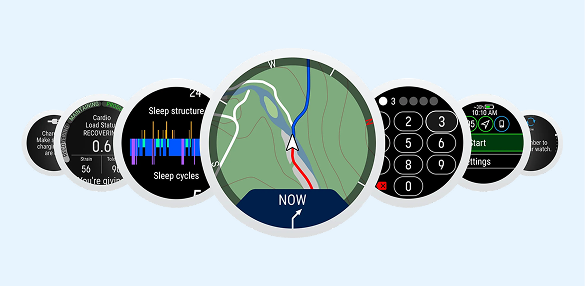
In the map view, tap the screen to bring up a hand-icon. You can enter the browse and zoom mode by tapping the hand icon or tapping the upper left-hand corner of the map.

The red bar at the bottom and top of the screen together with the hand-icon indicate that the browse and zoom mode is active.

In the browse and zoom mode, you can
- Zoom in with a double-tap or pinch-out.
- Zoom out with a two-finger tap or pinch-in.
- Browse the map by swiping it.
- Center your location on the map by tapping the map type indicator on the upper right-hand corner of the screen. If your location is already centered on the map, tapping the map type indicator will change the map type (heading up or north up).
You will leave the browse and zoom mode automatically if you don't touch the screen for a couple of seconds or by tapping the hand icon. When you leave the browse and zoom mode your location on the map is centered automatically.