


















How do I start using my Polar Loop?
Applies to: Polar Loop
Before you can start using your Polar Loop, you need to pair and set it up with the Flow app. The Polar Loop will automatically turn on when you plug it in to charge. Once plugged in, you can set it up using the Flow app.
After setup, your Polar Loop is ready to use. It will automatically track your heart rate, activity and sleep when worn. It will also sync your data with the Flow app automatically if your phone is within Bluetooth range and the Flow app is running at least in the background.
Step 1: Download Polar Flow app
Download Polar Flow app from the App Store or Google Play. Sign in with your Polar account or create a new one.
Step 2: Charge
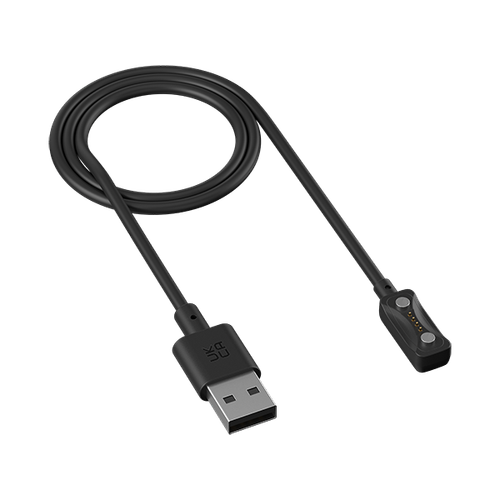
To charge your Polar Loop, plug it into a powered USB port or a USB charger using the custom cable included in the box.

While charging, the LEDs indicate progress: four clockwise rotating red LEDs show that charging is in progress, and when the battery is fully charged, the red LEDs remain continuously on.
Step 3: Set up
Make sure your phone is connected to the internet and turn on Bluetooth. Note that you have to do the pairing in the Flow app and NOT in your phone’s Bluetooth settings.
- After plugging in your Polar Loop to charge, open the Flow app to start the setup.
- The Flow app will automatically discover your Polar Loop and prompt you to start pairing it.
- Accept the Bluetooth pairing request on your phone. Pairing done is displayed once the pairing is completed.
- We’ll walk you through the setup within the app. Keep your Polar Loop close to your phone during setup. When you’re done with the settings, tap Save and sync and your settings are synced to your device.
To keep your device up to date, always update the firmware whenever a new version is available. You’ll be notified via Flow app when a new version is available.
If you disconnect Polar Loop from the charger before it is set up and paired with a phone, it will continue to search for a connection to a phone for 30 minutes before turning off. This search is indicated by four clockwise rotating red LEDs, turning on one at a time and rotating faster than during charging. To restart the search, plug the device in to charge again.