Training settings
To access the training settings, open Settings in pre-training mode, during a session when paused, or in transition mode during multisport sessions.
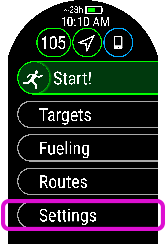
The options displayed in the training settings depend on the sport you have chosen and whether you are using GPS.

You can extend your training time by setting Wrist-based heart rate to Off. This helps you save battery during extra-long training sessions or when the battery is running low.

When using the Swimming/Pool swimming profile, it’s important that you choose the correct pool length, as it affects pace, distance and stroke calculation, as well as your SWOLF score. Tap Pool length to access the Pool length setting and change the previously set pool length if necessary. The default lengths are 25 meters, 50 meters and 25 yards, but you can also set it manually to a custom length. The minimum length that can be chosen is 17 meters/yards.
The pool length setting is only available in Settings in the pre-training mode.

In Sport settings, you can customize the key settings for each sport profile. For more information, see Sport settings.

Find my phone:
The Find My Phone feature allows you to locate your lost or misplaced phone using your watch. For more information, see Find My Phone.

Calibrate compass
Follow the instructions on the display to calibrate the compass.
Perform the calibration while wearing the watch on your wrist.

Calibrate power sensor:
If you have paired a third-party cycling power sensor with your watch, you can calibrate the sensor from Settings. First choose one of the cycling sport profiles and wake up the transmitters by rotating the cranks. Then choose Calibrate power sensor from Settings and follow the on-screen instructions to calibrate your sensor. For calibration instructions specific to your power sensor, see the manufacturer's instructions.

If you have paired a Bluetooth-compatible stride sensor with your watch, you can calibrate the sensor from Settings. First choose one of the running sport profiles, then open Settings. Navigate to Calibrate stride sensor and choose either Calibrate by running or Calibration factor.
- Calibrate by running: Start the training session and run a distance you know. The distance has to be more than 400 meters. When you have ran the distance, press OK to take a lap. Set the actual distance you have ran and press OK. The calibration factor is updated.
Please note that interval timer cannot used during the calibration. If you have set the interval timer on, the watch will ask you to turn it off to enable manual stride sensor calibration. You can turn the timer on from Settings in pause mode after calibration.
- Calibration factor: Set the calibration factor manually if you know the factor which gives you accurate distance.
For detailed instructions on manual and automatic calibration of a stride sensor, see Calibrating a stride sensor with Grit X/Pacer/Vantage.

The Race Pace feature helps you keep a steady pace and achieve your target time for a set distance. Define a target time for the distance - 45 minutes for a 10k run for example and follow how far behind or ahead you are compared to your pre-set target. You can also check what the steady pace/speed to meet your target is.
Race Pace can be set on your watch. Just choose the distance and target duration and you’re ready to go. You can also set a Race Pace target in the Flow web service or app, and sync it to your watch.
For more information, see Race Pace.

Turn on the Back to Start (Via beeline) or Track back (Via same route) feature.
For more information, see Track back and Back to start.
The back to start feature is only available if GPS is set on for the sport profile.
After making your selection, press the BACK button to return to pre-training mode.