First-time use
Before you can start using your Polar 360, you need to pair and set it up with the Flow app. The Polar 360 will automatically turn on when you plug it in to charge. Once plugged in, you can set it up using the Flow app.
After setup, your Polar 360 is ready to use. It will automatically track your heart rate, activity and sleep when worn. It will also sync your data with the Flow app automatically if your phone is within Bluetooth range.
The device connects to your phone via Bluetooth. Bluetooth turns on automatically when you plug in the device to charge and remains on unless the battery runs out or the device is turned off in the device settings of the Flow app.
If you are using your Polar 360 with a different application, see the user manual for that app for instructions on how to pair and use your device with it.
Charge
To charge your Polar 360, plug it into a powered USB port or a USB charger using the custom cable included in the box.
While charging, the LEDs indicate progress: the four red LEDs light up in a repeating clockwise sequence. When the battery is fully charged, all four red LEDs remain on.
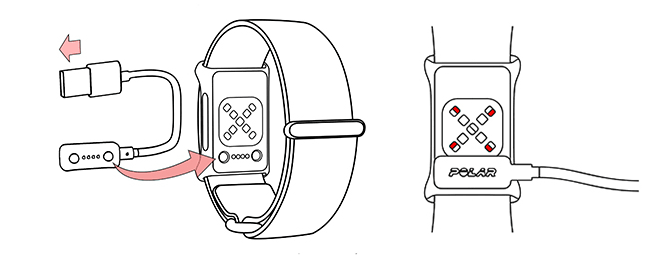
If the battery is completely empty, it may take several minutes for the charging to start. See Batteries for detailed information on charging the battery.
Set up
Please note that you have to do the pairing in the Flow app and NOT in your phone’s Bluetooth settings.
- Keep your Polar 360 close to your phone during setup.
- Make sure your phone is connected to the internet and turn on Bluetooth.
- Download the Polar Flow app from the App Store or Google Play on your phone.
- Once downloaded, open the Flow app and tap Get Started.
- The Flow app recognizes your Polar 360 nearby and prompts you to start pairing it. Tap the Start button on the Flow app.
- Accept the Bluetooth pairing request on your phone.
- Pairing done is displayed once the pairing is completed.
- Sign in with your Polar account or create a new one. We’ll walk you through the sign-up and setup within the app.
To keep your device up to date, always update the firmware whenever a new version is available. You’ll be notified via Flow app when a new version is available.
When you’re done with the settings, tap Save and sync and your settings are synced to your device.
If you unplug Polar 360 from the charger before it is set up and paired with a phone, the device continues searching for a connection to a phone for 30 minutes before turning off. During the search, the four red LEDs light up one at a time in a repeating clockwise sequence, faster than during charging. To restart the search, plug the device into a charger again. Then follow the instructions in the Flow app to set up your Polar 360.
Troubleshooting Polar 360 Setup
If you're having trouble setting up your Polar 360 with your phone and the Flow app, make sure:
- Your phone is compatible with the Polar Flow app.
- You have the latest version of the Polar Flow app downloaded from Google Play or the App Store and installed on your phone.
- Bluetooth is turned on in your phone and the airplane mode/flight mode is off. You can try to fix a problem in the Bluetooth connection by turning it off and on again in the phone's settings.
- Android users: make sure location is enabled for Polar Flow app in the phone's application settings.
- Then, try setting up your Polar 360 again.
If you're still unable to set up, here are a few more steps that can help you solve the problem.
- Polar 360 has to be paired with your phone in the Flow app, not in your phone's Bluetooth settings. If you have paired the device with your phone in your phone's Bluetooth settings, follow the instructions below to unpair the Bluetooth connection, and then set up the device using the Flow app.
- On your phone remove your device from the list of paired Bluetooth devices as follows: iOS: Go to Settings > Bluetooth, tap the
 icon to the right of your device and choose Forget this Device. Android: Go to Settings > Bluetooth, choose your device and Forget this Device.
 - To remove the pairing from your device, reset it to factory settings by pressing the restart/reset button with a pin when the device is plugged in to a powered USB port or a USB charger. For detailed instructions, see Restarting and resetting.
- Follow the instructions for setting up the device with the Flow app.
- On your phone remove your device from the list of paired Bluetooth devices as follows: iOS: Go to Settings > Bluetooth, tap the
- If you experience unexpected behavior in Flow app during setup, first force quit it to see if this helps. If not, uninstall and reinstall the app. Reset your Polar 360 if nothing else works.