Training settings
To access the training settings, open Settings in pre-training mode and during a session when paused.
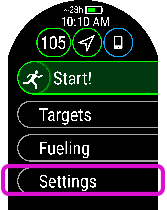
The options displayed in the training settings depend on the sport you have chosen and whether you are using GPS.

The power save settings allow you to extend your training time by changing the GPS recording rate and setting Wrist-based heart rate off. These settings let you optimize battery usage and get more training time for extra long sessions or when the battery is running low.
For more information, see Power save settings.

When using the Swimming/Pool swimming profile, it’s important that you choose the correct pool length, as it affects pace, distance and stroke calculation, as well as your SWOLF score. Tap Pool length to access the Pool length setting and change the previously set pool length if necessary. The default lengths are 25 meters, 50 meters and 25 yards, but you can also set it manually to a custom length. The minimum length that can be chosen is 17 meters/yards.
The pool length setting is only available in Settings in the pre-training mode.

In Sport settings, you can customize the key settings for each sport profile. For more information, see Sport settings.

Find my phone:
The Find My Phone feature allows you to locate your lost or misplaced phone using your watch. For more information, see Find My Phone.

The Race Pace feature helps you keep a steady pace and achieve your target time for a set distance. Define a target time for the distance - 45 minutes for a 10k run for example and follow how far behind or ahead you are compared to your pre-set target. You can also check what the steady pace/speed to meet your target is.
Race Pace can be set on your watch. Just choose the distance and target duration and you’re ready to go. You can also set a Race Pace target in the Flow web service or app, and sync it to your watch.
For more information, see Race Pace.

The back to start feature guides you back to the starting point of your session. To add the Back to start view to your training views of the current training session, choose Back to start on, and press OK.
For more information, see Back to start.
The back to start feature is only available if GPS is set on for the sport profile.
After making your selection, press the BACK button to return to pre-training mode.